← → or PgUp/PgDn to flip · + / − to zoom · 0 to fit · S for sidebar · F for full screen
Scroll to read · ☰ for pages, contents and search · + / − to zoom
Text version of this guide
Page 1: Cover
ALPHA NextGEN. Next Generation OBD1 Honda Emulator.
Page 2: Board overview
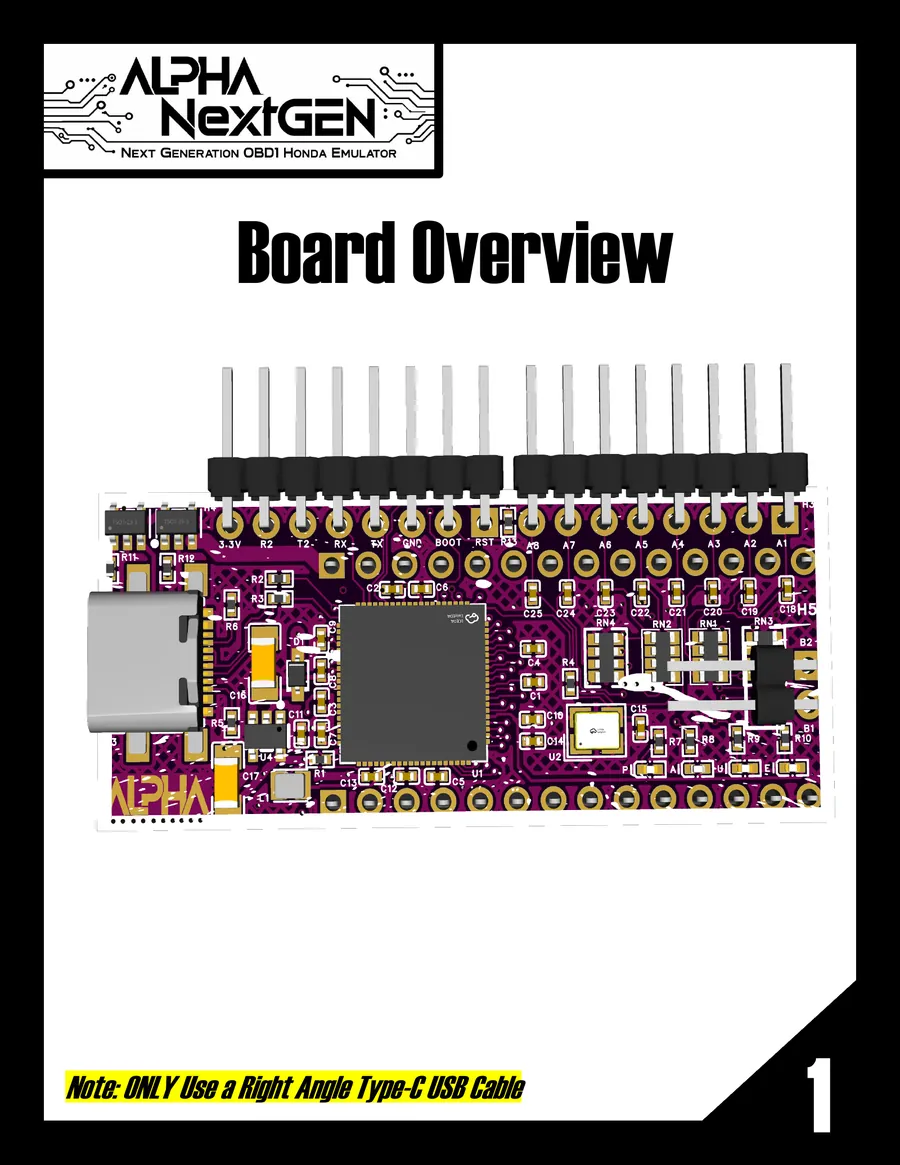
Board overview. Note: ONLY use a right angle Type-C USB cable.
Page 3: Connector reference
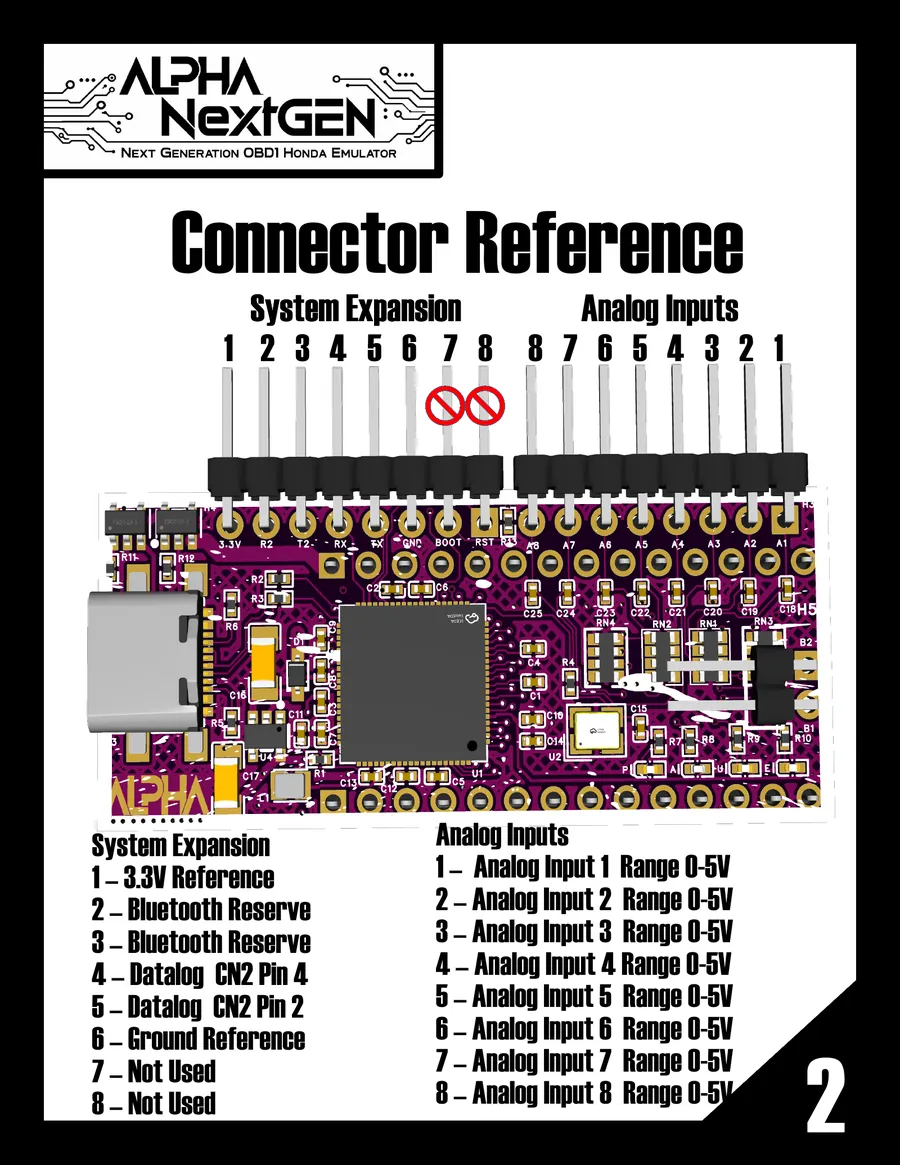
Connector reference. System Expansion: 1 – 3.3V Reference. 2 – Bluetooth Reserve. 3 – Bluetooth Reserve. 4 – Datalog CN2 Pin 4. 5 – Datalog CN2 Pin 2. 6 – Ground Reference. 7 – Not Used. 8 – Not Used. Analog Inputs: 1 through 8 – Analog Input 1-8, Range 0-5V.
Page 4: Multiple tune selection
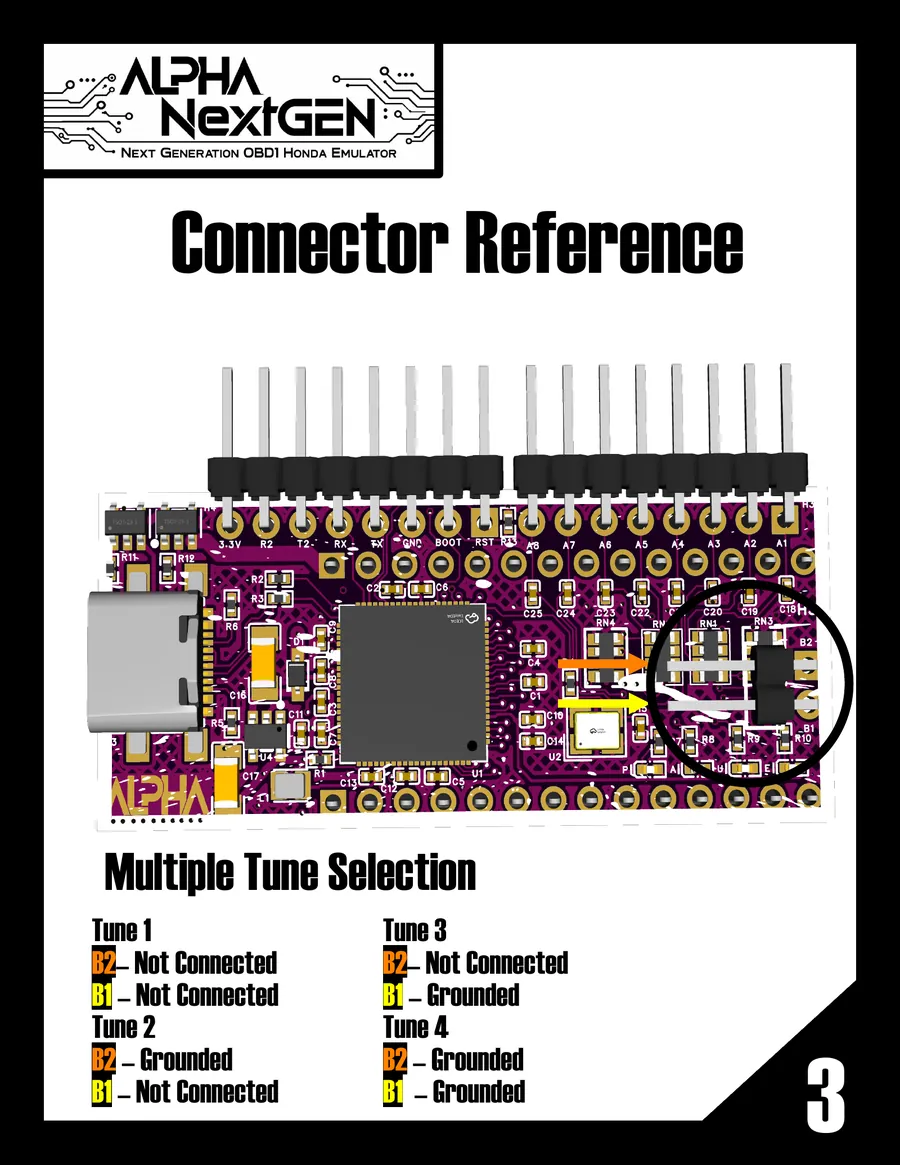
Connector reference. Multiple Tune Selection: Tune 1 – B1 not connected, B2 not connected. Tune 2 – B1 not connected, B2 grounded. Tune 3 – B1 grounded, B2 not connected. Tune 4 – B1 grounded, B2 grounded.
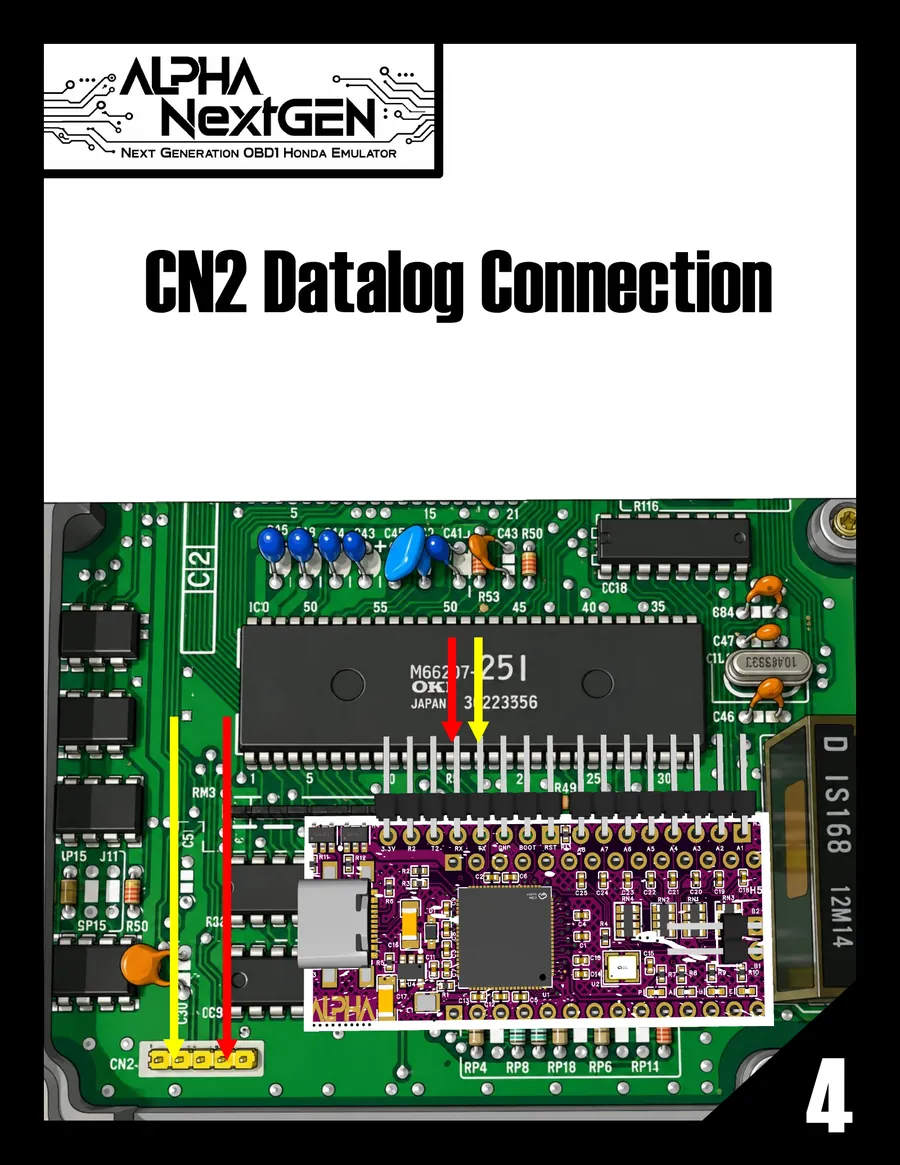
Page 5: CN2 datalog connection
CN2 Datalog Connection (diagram).
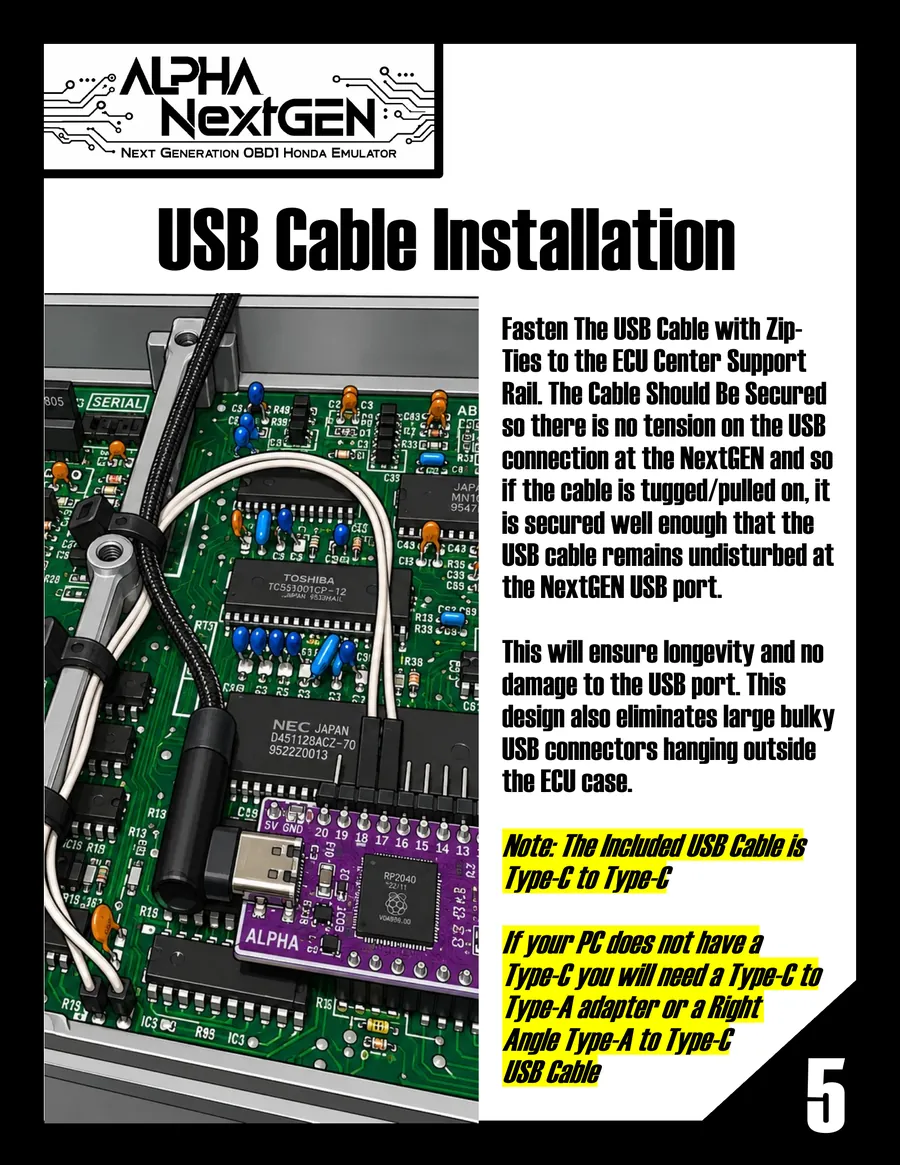
Page 6: USB cable installation
USB Cable Installation. Fasten the USB cable with zip-ties to the ECU center support rail. The cable should be secured so there is no tension on the USB connection at the NextGEN, and so if the cable is tugged or pulled on, it is secured well enough that the USB cable remains undisturbed at the NextGEN USB port. This will ensure longevity and no damage to the USB port. This design also eliminates large bulky USB connectors hanging outside the ECU case. Note: the included USB cable is Type-C to Type-C. If your PC does not have a Type-C port you will need a Type-C to Type-A adapter or a right angle Type-A to Type-C USB cable.
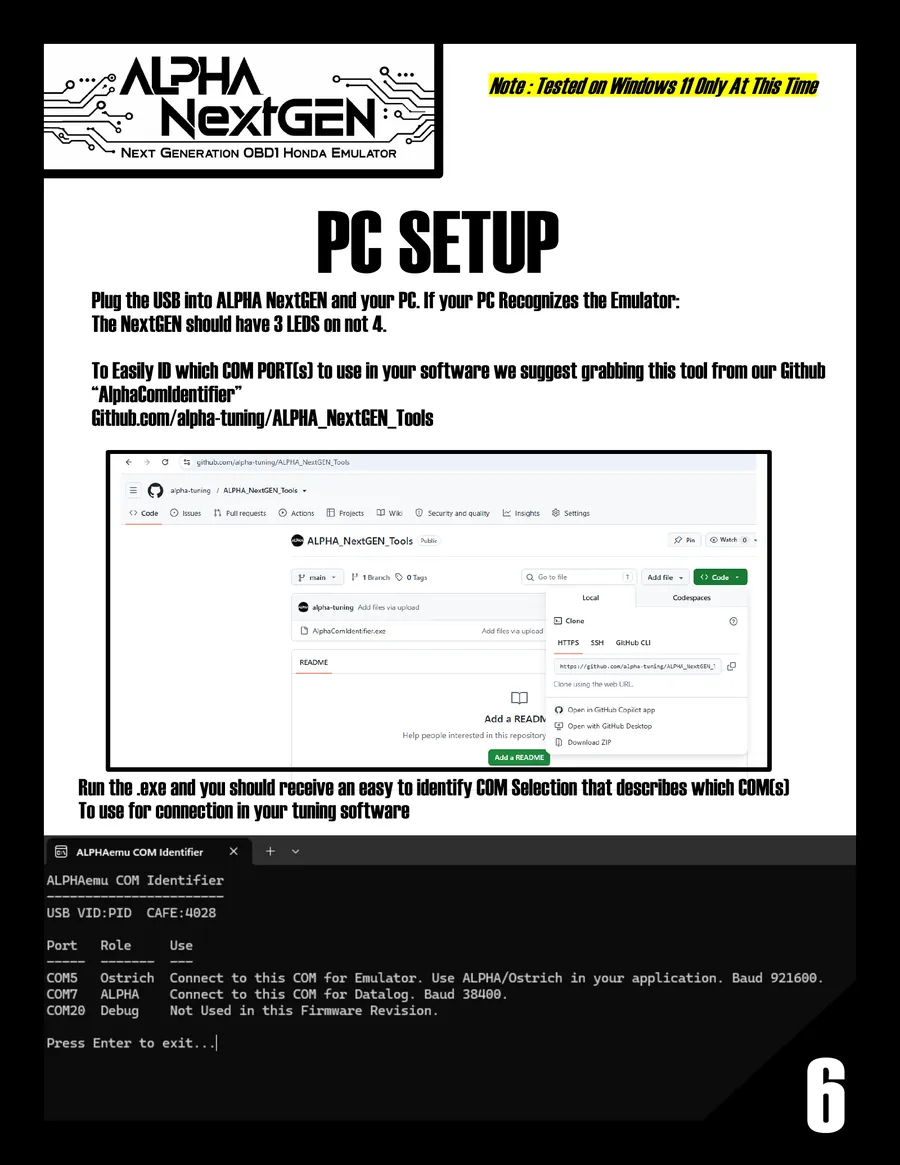
Page 7: PC setup
PC Setup. Note: tested on Windows 11 only at this time. Plug the USB into ALPHA NextGEN and your PC. If your PC recognizes the emulator, the NextGEN should have 3 LEDs on, not 4. To easily identify which COM port(s) to use in your software, grab the "AlphaComIdentifier" tool from the ALPHA GitHub: github.com/alpha-tuning/ALPHA_NextGEN_Tools. Run the .exe and you should receive an easy to identify COM selection that describes which COM(s) to use for connection in your tuning software.
Transcribed from the PDF. Diagrams are only in the page images above.